
A slow PC kills productivity. Before you spend money on new hardware, try these 12 proven software tweaks that can restore your Windows 11 machine to near-new performance.
1. Disable Startup Programs
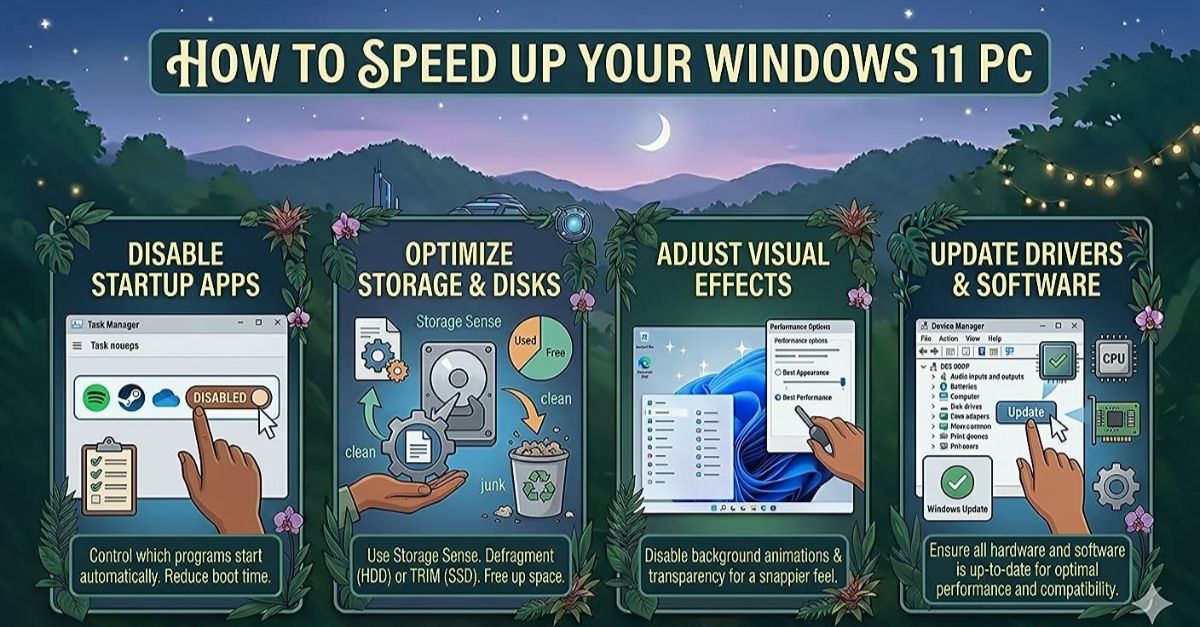
Too many programs launching at startup is the most common cause of a slow boot. Press Ctrl + Shift + Esc to open Task Manager, click the Startup Apps tab, and disable anything you don't need immediately after login. Common offenders include Spotify, Discord, and Skype.
2. Enable Storage Sense
Go to Settings → System → Storage and turn on Storage Sense. This automatically deletes temporary files, empties the recycle bin, and clears old Windows Update files on a schedule. Run it manually once to reclaim space immediately.
3. Adjust Power Settings
Windows 11 sometimes defaults to a Balanced or Power Saver plan. Go to Settings → System → Power and set the plan to Best Performance when plugged in. This alone can make a noticeable difference on mid-range laptops.
4. Update Your Drivers
Outdated graphics and chipset drivers cause stuttering and crashes. Visit your laptop manufacturer's website (Dell, HP, Lenovo, ASUS) and download the latest drivers directly — do not rely solely on Windows Update for this.
5. Reduce Visual Effects
Search for Adjust the appearance and performance of Windows in the Start menu. Select Adjust for best performance or manually uncheck animations like "Animate windows when minimizing and maximizing." This frees up GPU and CPU resources instantly.
6. Increase Virtual Memory
If you have less than 8GB of RAM, increasing the paging file size helps. Search for Adjust the appearance and performance of Windows, go to the Advanced tab, click Change under Virtual Memory, and set a custom size of 1.5× your physical RAM.
7. Run a Malware Scan
Hidden malware and adware consume CPU and network resources in the background. Open Windows Security → Virus & Threat Protection and run a Full Scan. Also run Malwarebytes (free version) as a second opinion scanner.
8. Clean the Registry with a Trusted Tool
Over time, the Windows registry accumulates orphaned entries from uninstalled software. CCleaner (free) safely cleans these. Always back up the registry before running any cleaner — it is offered automatically before cleaning.
9. Check Disk Health
Open Command Prompt as administrator and run chkdsk C: /f /r. Schedule it for the next restart. This finds and repairs disk errors that cause slowness and unexpected freezes. If you have an HDD (not SSD), also run Disk Defragmenter monthly.
10. Disable Search Indexing on HDDs
Windows Search constantly indexes your files in the background. On HDDs, this causes constant disk activity. Right-click your C: drive, select Properties, and uncheck Allow files on this drive to have contents indexed. Search will be slower but your PC will feel more responsive.
11. Reinstall the App Causing Problems
If one specific app is sluggish, uninstall and reinstall it cleanly. Use Revo Uninstaller (free) instead of Windows' built-in uninstaller — it removes leftover registry entries and folders that a standard uninstall misses.
12. Consider a Clean Windows Install
If your PC is 2–3 years old and none of the above helps significantly, a clean Windows 11 reinstall is the nuclear option. It takes about an hour, removes all bloatware and accumulated junk, and almost always restores original performance. Back up your files to an external drive first.



Comments