
The Ultimate Guide to Everyday Computer Ports
Take a glance at the sides of your laptop or the back of your desktop PC. You will likely see a chaotic array of slots, holes, and shapes. These are computer ports, the unsung heroes that allow our devices to talk to the outside world. While wireless technology is growing, physical ports remain the gold standard for speed, reliability, and power.
Whether you are trying to hook up a second monitor, transfer photos from a camera, or figure out why your mouse won't plug in, understanding these ports will save you hours of tech-induced frustration. Let's break them down by what they do best.
?️ Visual & Display Ports
These ports are responsible for sending video (and sometimes audio) signals from your computer to an external screen, project, or television.
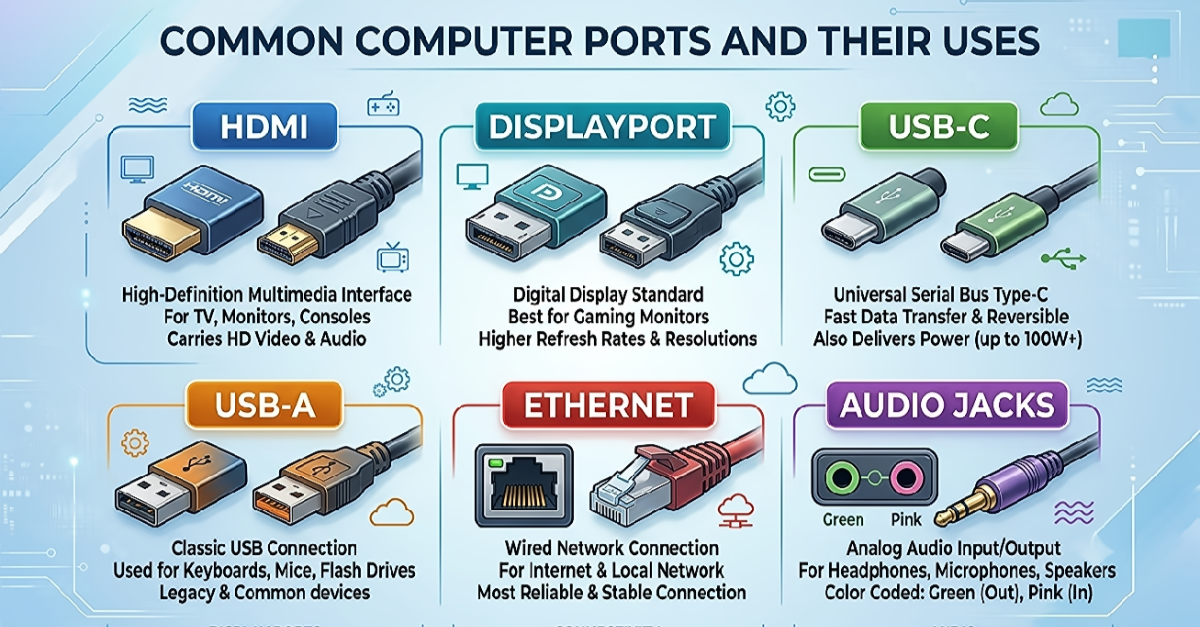
- HDMI (High-Definition Multimedia Interface): The current universal standard for home entertainment. It seamlessly carries both high-definition video and crisp audio through a single cable, making it the default choice for TVs, monitors, and gaming consoles.
- DisplayPort (DP): The darling of the PC gaming community. While it looks similar to HDMI, DisplayPort is engineered to handle much higher refresh rates and bandwidth, making it ideal for high-end gaming setups and multi-monitor rigs.
- Mini DisplayPort: A miniaturized version of the standard DisplayPort. It was heavily featured on older Apple MacBooks and Microsoft Surface tablets before smaller USB standards took over.
- VGA (Video Graphics Array): The vintage, blue 15-pin connector. It only transmits analog video signals (no audio). While ancient by tech standards, you will still find it clinging to life on office projectors and older desktop monitors.
⚡ Data Transfer & Power Delivery
These multipurpose slots handle everything from charging your devices to transferring massive files and connecting external peripherals like keyboards and mice.
- USB-A: The classic, rectangular plug we have all tried (and failed) to insert upside down on the first attempt. It has been the global standard for decades for flash drives, keyboards, and mice.
- USB-C: The modern, pill-shaped evolution of USB. It is fully reversible (no right-side-up), handles blazing-fast data transfer speeds, and can even carry enough electricity to charge power-hungry laptops. It is rapidly becoming the single port to rule them all.
- Thunderbolt™: Developed by Intel and Apple, this port utilizes the exact same physical shape as a USB-C slot (and usually features a small lightning bolt icon). However, under the hood, it offers vastly superior data transfer rates, allows you to chain multiple 4K monitors together, and supports external graphics cards (eGPUs).
- FireWire (IEEE 1394): A high-speed interface popular in the late 90s and 2000s, primarily on Apple computers. It was the go-to port for digital camcorders and external hard drives before USB 2.0 and 3.0 caught up in speed.
Quick Comparison: High-Speed Data Ports
| Port Type | Physical Shape | Primary Strengths |
|---|---|---|
| USB-A | Rectangular, directional | Legacy compatibility with millions of everyday accessories. |
| USB-C | Oval, fully reversible | Universal use, fast data speeds, and heavy power delivery. |
| Thunderbolt | Oval (Uses USB-C shape) | Extreme data speeds, high-end monitor setups, and external hardware. |
? Networking & Specialized Connections
How our machines talk across networks, alongside the heavy-duty legacy ports that refuse to fade away.
- Ethernet (RJ-45): The ultimate port for stability. Wi-Fi is incredibly convenient, but nothing beats the raw, uninterrupted speed and low latency of a hardwired Ethernet cable for gaming, streaming, or downloading massive archives.
- Serial Port (RS-232): An ancient 9-pin connector that dates back decades. While long gone from consumer computers, it remains a vital backbone in industrial automation, medical machinery, and networking equipment programming.
- Parallel Port: The massive, wide connector most commonly remembered as the old "printer cable." It sent multiple bits of data simultaneously but has been completely phased out in favor of USB.
? Audio & Removable Storage
Dedicated slots for listening to audio and quickly swapping data across physical media formats.
- 3.5mm Audio Jacks: The classic analog audio ports. On desktop PCs, these are often color-coded for ease of use: Pink signals the microphone input, Blue indicates line-in (for external audio players), and Green is dedicated to your headphones or speakers.
- SD / MicroSD Card Slot: A photographer and videographer's best friend. This slot allows you to slide memory cards straight out of your camera or drone and into your computer for instant file access.
- eSATA (External Serial ATA): A dedicated high-speed port meant specifically for connecting external hard drives. It enjoyed a brief period of popularity due to its raw speed advantage over early USB formats but faded once USB-C arrived.
? Mobile Interfaces & Vintage Peripherals
A look at specialized mobile phone connectors alongside the old peripheral ports that laid the groundwork for today's tech.
- Lightning Port: Apple’s proprietary connector used across iPhones and basic iPads for over a decade. Beloved for its durable, compact layout, it has since been sunsetted in newer Apple lineups in favor of the globally standardized USB-C interface.
- PS/2 Port: The iconic, round 6-pin connections found on vintage computer cases. Color-coded Purple for keyboards and Green for mice, they have been entirely replaced by modern USB interfaces.
"As consumer electronics trend toward thinner profiles, specialized standalone ports are slowly vanishing. The industry is rapidly moving toward a unified ecosystem where a single USB-C or Thunderbolt port handles everything from charging your battery to projecting multi-display 4K video."
Wrapping Up
Understanding your computer's ports lets you buy the right accessories without wasting money on useless dongles or incompatible adapters. Keep this guide bookmarked next time you are shopping for a new monitor, a fast external drive, or an upgrade for your home workspace!

Comments